
Windows recovery · Field-tested guide
Bring files back with a plan, not panic.
Recuva restores photos, documents, and more from PCs, memory cards, and USB drives. Here you learn when to scan deep, how SSDs differ from disks, and which mistakes erase data for good.
- Free personal recovery tier
- Deep Scan for hard cases
- NTFS · FAT · exFAT
About this site
Editorial guide—independent site
recuva.dev is an independent English-language resource. We explain how recovery behaves on real Windows setups; we do not ship Recuva installers here.
-
We do not host installers
Our download page opens your browser so you can search for a Windows build and help yourself—nothing is mirrored on this domain.
-
Runs on your PC
Recuva scans local volumes you select. There is no “upload your disk to our cloud” step in the tool itself—your data stays on hardware you control during recovery.
-
Trademark note
Recuva is a trademark of its respective owner. This site is informational only and not affiliated with the trademark holder or Microsoft.
The app
What Recuva is on Windows
A small, focused undelete and carve utility—not a full backup suite or cloud service. These are the pieces people actually click when a folder disappears or a card shows “empty.”
-
Wizard-driven scans
Pick a drive or folder, choose a scan mode, then review a sortable list with paths, sizes, and state colours. No account sign-in—everything runs against volumes you attach locally.
See the UI -
Normal vs Deep Scan
A quick pass leans on the file system index when it still exists. Deep Scan walks the disk for signatures—slower and noisier, but sometimes the only pass after quick format or heavy damage.
Deep Scan guide -
Secure overwrite (use with care)
Optional wiping for when you want clusters gone—not while you are still trying to rescue data. We treat it as a destructive path in the docs so nobody confuses it with recovery.
FAQ: overwrite & safety -
Portable runs & offline desks
Many users unzip a portable build onto another disk when C: is the one in trouble—fewer writes where you are hunting. Air-gapped or slow links still work because the scan never depends on our servers.
Portable article
Reality check: Recuva does not replace backups, Volume Shadow Copy, or lab recovery when hardware is failing. It does give you a honest first pass on “simple delete” stories—if clusters are still there.
On this site
Practical help—not a generic feature list.
Recuva is only part of the story. The rest is order of operations: when to scan, where to save recovered files, and when to stop hoping on a trimmed SSD.
-
Step-by-step workflow
Three decisions that decide whether recovery works: stop writes, choose scan depth, restore elsewhere.
Open workflow -
Product tour & screenshots
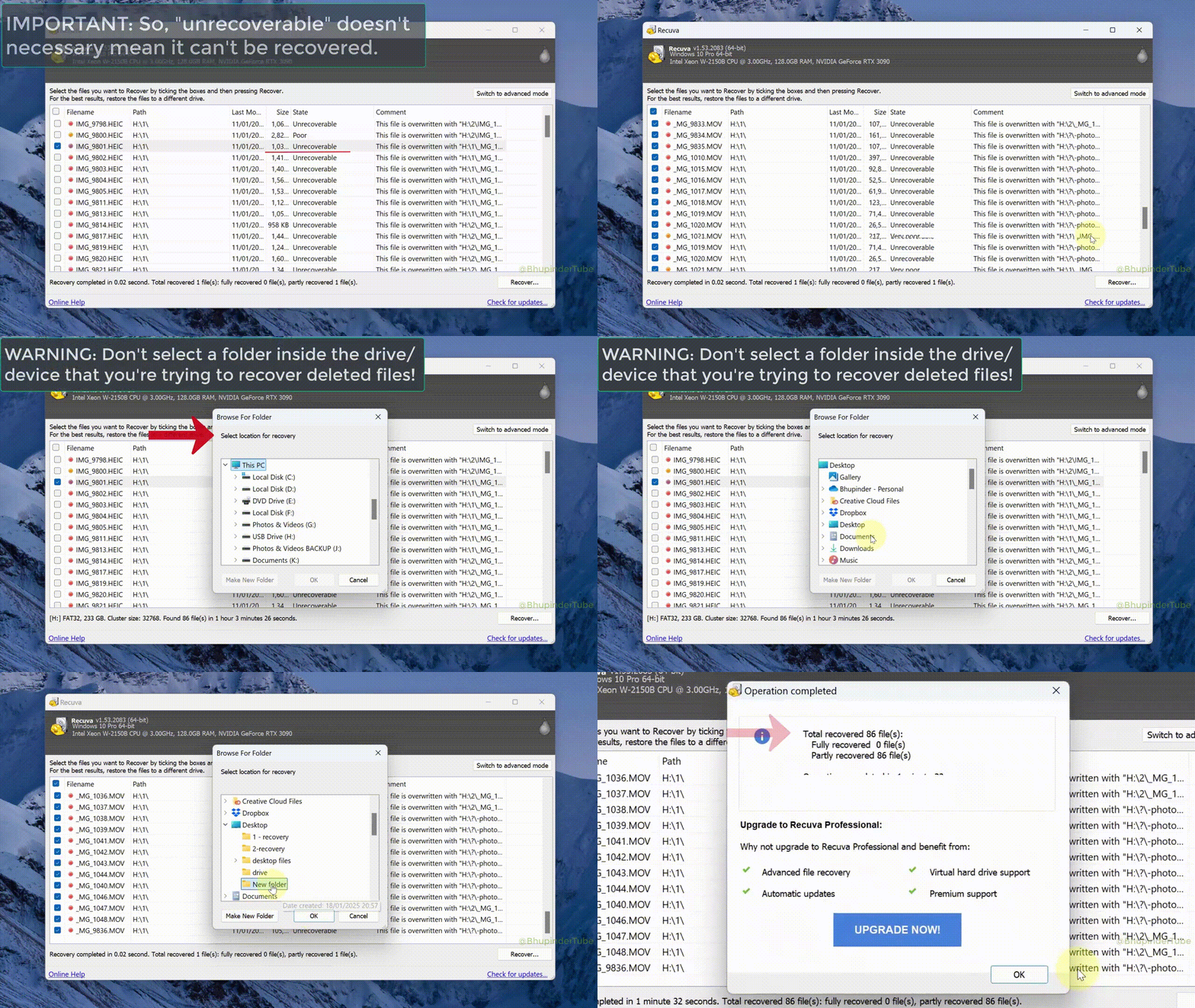
Deep Scan, secure overwrite, and the results list—what the Windows UI actually looks like.
See capabilities -
When lists look wrong
SSD + TRIM, “unrecoverable,” permissions, and Deep Scan that runs for hours—triage without the spiral.
Troubleshooting -
Why we wrote this guide
Playbooks, honest limits, and clean-install hygiene—so you do not make a bad afternoon worse.
Why this guide
Start here
Pick a door—same rules, different first click
Jump straight to the page that matches how panicked you are and what still spins.
-
I need the installer
Search for a Windows build and help in a new tab—this domain does not mirror installers or binaries.
Download page -
I want the full order of operations
Stop writes, choose scan depth, restore to another disk—one narrative from panic to “I have a copy.”
Workflow -
The scan looks wrong
Empty lists, permission errors, random filenames after Deep Scan, USB dropping mid-pass—triage without reinstall roulette.
Troubleshooting -
Show me the real UI
Screens from actual sessions: Deep Scan, options, results grid, and folder-structure restore—so labels match what you see.
Product tour -
Short licensing & SSD answers
Free tier, TRIM expectations, same-drive restore, format prompts—expandable FAQ style on the dedicated page.
FAQ -
Why this site exists
Editorial stance, honest limits, and how we think about recovery hygiene so one bad hour does not become a bad week.
Why this guide
Checklist
Before you click “Scan.”
Most damage happens after deletion—new writes, formatting the wrong volume, or saving recovered files back onto the source disk. Slow down once; you keep more options.
-
1
Pause the drive
Avoid installing tools onto the partition you are recovering. Eject removable media safely before you unplug.
-
2
Try a normal scan first
Deep Scan is powerful but slow. Use it when the file system no longer lists what you need.
-
3
Save somewhere else
Always recover to a different physical disk or partition. In-place recovery can overwrite clusters you still need.
Timeline
The first hour after you notice missing files
A clock-driven order so you spend minutes where they still matter—before TRIM, temp files, and background apps eat free space.
-
Stop the bleeding
Close apps that write to the affected disk. Eject SD/USB safely. Do not format or “repair” until you have a plan.
-
Label the target
Internal SSD vs spinning disk vs removable card changes expectations. Note the drive letter and whether BitLocker or another vault is involved.
-
Install off-target
Prefer installing Recuva on a volume you are not recovering. Pick that exact volume in the wizard—not “My Computer” vagueness.
-
Normal, then Deep
Run a standard pass first. If the tree is empty or obviously wrong, escalate to Deep Scan and filter results before you recover anything.
-
Verify, then breathe
Restore to another disk, open a sample of files, and only then reuse the source volume for heavy work.
Why a timeline? Checklists guard mistakes; a clock reminds you that SSDs and busy PCs do not wait for perfect conditions.
Real situations
When people reach for Recuva
The wizard is the same on every PC—what changes is how much was written after the loss and whether the storage still exposes deleted clusters. These patterns show up again and again.
-
Recycle Bin emptied or Shift+Delete
Still on the same volume—risk is new downloads, browser caches, and temp files writing over freed space. Act before routine use piles on.
Recovery order -
Camera or phone SD card
Quick format or “card error” after a shoot: remove the card, do not let the camera “repair” it in place, and recover to another disk.
SD card guide -
USB stick or external drive
“You need to format” prompts, raw volumes, or accidental quick format—try a normal scan first, then Deep Scan if the file system is a mess.
Troubleshooting -
Laptop system drive (C:)
Windows, browsers, and background TRIM on SSDs shrink your odds fast. Prefer booting from another OS or attaching the disk as a secondary reader when you can.
SSDs & TRIM
Composite timelines and “what we tried first” notes live on field notes & scenarios.
Faster than a scan
Sometimes the file still exists—just not where you are looking
Undelete tools compete with time and writes. When another copy already exists, fetching it beats hours of Deep Scan noise.
-
Cloud version history
OneDrive, Google Drive, Dropbox, and iCloud keep web recycle bins and older versions. Log into the browser—not only the desktop folder—before you treat the loss as a disk problem.
-
File History & company backup
Windows File History, corporate Veeam, or IT’s snapshot may restore a tree in one click. Ask internal helpdesk for “previous version” the same hour you notice the gap.
-
The human resend
Contracts, invoices, and decks usually live in someone else’s Sent folder. A two-minute email can replace a fragile carve from a dying disk—use that when stakes are contractual, not sentimental.
Bench setup
Hardware that quietly ruins scans
Recuva only sees what the bus delivers. Intermittent USB, weak power, and flaky readers masquerade as “bad software” when the truth is physics and connectors.
-
Cable & port
Try another USB port and a shorter, higher-quality cable—especially with spinning disks that draw more power. “Device disconnected” mid-scan is often the cable, not the file system.
-
Card readers & hubs
Unpowered hubs and bargain readers drop the connection under load. If Deep Scan fails twice, test the same card with a direct motherboard port or a reader you trust.
-
Power & sleep
Laptops on battery may sleep during a long pass. Plug in, keep the lid open if needed, and pause aggressive battery savers until the scan finishes.
Guides
Longer reads on strategy
Short articles you can open before a scan—or send to someone who just said “I deleted the wrong folder.”
-
Deep Scan
When Deep Scan is worth the wait
Quick pass vs sector search, timing expectations, and how to avoid false hope on huge disks.
Read guide -
SSDs
SSDs, TRIM, expectations
Why flash storage behaves differently—and what still matters in the first minutes after deletion.
Read guide -
Memory cards
SD cards after quick format
What to avoid in the first thirty minutes and where to recover files so you do not recycle the same clusters.
Read guide
-
Quality
Fragmentation & “excellent” state
Why green labels in the list are not a promise—and how to sanity-check photos, video, and Office files after recovery.
Read guide -
Threat model
Ransomware vs undelete
Encrypted payloads are not a “deleted file” problem—when recovery tools stop being the right layer of defense.
Read guide
-
Portable
Running Recuva without installing
When the system disk is the one in trouble, a portable unzip on another volume can mean fewer writes where it hurts.
Read guide -
Mail
Deleted email & local scraps
PST/OST fragments, browser caches, and attachments that never lived only on the server—where Recuva still helps.
Read guide -
Letters
Drive letters & “missing” volumes
Why Disk Management layout matters before you blame the wizard—and how wrong letters create fake “empty” scans.
Read guide
-
Shadow copies
Previous versions & restore points
Sometimes Windows already kept a copy—check before you commit to a multi-hour Deep Scan on a busy disk.
Read guide -
Temp & installers
Temp files vs real deletes
Why “cleaner” apps and setup routines compete with undelete—and how to spot self-inflicted overwrites early.
Read guide -
Field notes
Composite timelines from real desks
What people tried first, what failed, and what still worked—short stories to compare with your own afternoon.
Field notes
On Windows
Things the wizard does not spell out
Recuva sits on top of how Windows exposes volumes. These are the friction points we see in threads and family IT calls—none of them require a second app, but all of them change what “scan this drive” actually means.
BitLocker & full-disk encryption
If the volume is locked, Recuva reads ciphertext—recovery without the right unlock path is not meaningful. Unlock (or recover keys from your org) before you interpret an empty tree as “nothing left.”
NTFS, FAT32, and exFAT
USB sticks and SD cards often ship as FAT/exFAT; internal disks are usually NTFS. The file system changes how deletes are recorded—not every “quick format” story behaves the same on every layout.
Capabilities & file systemsPermissions & “Access denied”
Another user profile, system folders, or corporate policy can block reads that look like software failure. Rule out ACL issues on the parent path before you assume the clusters are gone.
Support patternsAdministrator reality
Some mounts and raw layouts only appear consistently under an elevated session. If the wizard’s drive list disagrees with Disk Management, try the honest admin path once—not every mysterious empty scan is TRIM.
Readers
Who this site is written for
Same tool, different stakes. These are people profiles—not the technical patterns in “When people reach for Recuva.” Use them to find the tone and next click that fits your day.
-
Creatives & memory cards
Weddings, field audio, drone footage—you care about previews and filenames as much as bytes. Start with our SD workflow, then read field notes when a shoot went sideways.
Field notes -
Students & USB keys
Thesis, CAD exports, lab data on a stick you lent out. You need a calm order of operations before panic-installing five tools on the same laptop.
Workflow -
Friends-and-family IT
You are on the phone with someone who “only deleted one folder.” Send them the checklist, then troubleshoot odd lists and permissions without inventing hardware miracles.
Troubleshooting
Scope
What Recuva is built to hunt
Deleted entries in the file system still point at clusters until something else claims them. Recuva walks those pointers—so the type of file matters less than whether the clusters are intact.
-
Documents & spreadsheets
Office files, PDFs, text, archives—often small enough that a quick scan finds them if metadata still exists.
-
Photos & RAW
JPEG, PNG, camera RAW—Deep Scan can surface orphans with wrong names; preview when the UI allows it.
-
Video & audio
Large contiguous files fragment easily; recovery may yield playable clips or partial streams—always verify after copy.
-
Email & browser scraps
Local mail stores, cache folders, and attachments—useful when the client kept a copy the server no longer has.
-
Code & project folders
Thousands of small files: normal scan first; Deep Scan if you reformatted or cloned over a repo.
-
Any extension, honestly
Recuva does not care about the icon—only whether cluster chains are still recoverable. See how results and previews behave in the product tour.
Product tour
In the UI
Terms that confuse new users
Recuva’s labels are honest but terse. Here is what they usually mean in practice—without repeating our full product tour.
- State colours in the list
- Green, orange, and red are heuristics, not guarantees. Use previews when available and open recovered files on a safe copy before you trust the label alone.
- Deep Scan
- Ignores the folder index and hunts signatures across the disk. Slower, noisier, and sometimes the only pass that surfaces files after formats or corruption.
- Secure overwrite
- A destruction feature: it is for when you want data gone, not when you are still trying to undelete. Never run it on a source you are rescuing.
- Original path column
- Shows where the file probably lived. After Deep Scan, paths can be partial or synthetic—pair with size, type, and previews to avoid mixing up two similar files.
Reality check
Myths we hear in support threads
Short corrections—different from the UI glossary and from hard limits below.
-
Myth
“Empty Recycle Bin = gone forever.”
Reality: Files often remain recoverable until new data overwrites their clusters. Speed and write discipline matter more than the icon in the bin.
-
Myth
“Deep Scan always finds it if it exists.”
Reality: No signature match, heavy fragmentation, or TRIM’d SSD space can still mean an empty list. Deep Scan widens the net—it does not break physics.
Deep Scan guide -
Myth
“Recuva uploads my disk to the cloud.”
Reality: The Windows app scans volumes you select locally. Your risk model is still malware, sketchy installers, and who sits at the keyboard—not a hidden upload pipeline in the wizard.
About this site
While the PC is still on
Small habits that save the session
Different from checklists and timelines—these are note-taking moves so you do not argue with yourself about which drive was which an hour later.
-
Screenshot Disk Management
Letters and offline volumes before you shuffle USB hubs or reboot—proof of what Windows thought it saw.
-
One sticky note: source → dest
Write the drive letters you must not recover onto. Tape it to the bezel if you are tired.
-
Pause “clean PC” tools
Defer disk optimizers, aggressive temp cleaners, and game launchers patching to another disk until the scan finishes.
-
VM or dual-boot?
Recover from the host or attach the virtual disk read-only when you can—guest OS writes add another layer of overwrite risk.
Straight talk
When even a good scan cannot fix it
We still recommend Recuva first—it is free, offline-friendly, and the right way to learn what is left. But some losses are not a settings problem.
- SSD with TRIM already reclaimed blocks — space reads as zero; no undelete tool reconstructs what the controller discarded.
- Full-disk encryption without keys — recovered blobs stay ciphertext. Backups and account recovery are the real path.
- Dying hardware — clicking drives, endless bad sectors: clone or image first; software cannot invent stable platters.
Still worth running Recuva
You might learn the file never hit the disk, find an older copy, or rule out “simple delete” before you pay for lab recovery. Pair results with our FAQ on licensing, Deep Scan runtime, and false positives.
Reality
Why we standardize on one tool here
The internet is full of “100 best recovery apps” lists. This site focuses on Recuva so guidance stays consistent—same wizard, same vocabulary, same limits—instead of mixing incompatible UIs and license traps in one paragraph.
What you gain
- Offline scans on hardware you control—no upload queue.
- Deep Scan and secure overwrite documented in one product tour.
- Free tier that is enough to learn whether simple undelete still works.
What we do not promise
- Replacing clean-room recovery when heads click or firmware is corrupt.
- Beating TRIM or full-disk encryption without keys—see hard limits.
- Ranking every competitor; if Recuva is wrong for your case, a lab or backup path still wins.
Close the loop
After the recovery session
Getting files off the drive is half the job. The other half is proving they open and not painting yourself into the same corner next week.
-
Spot-check before you celebrate
Open a random sample of documents, play part of a video, and verify checksums for anything contractual. Good UI states still deserve a human proof.
-
Copy to two places you trust
Cloud plus external disk, or two separate physical drives. Recovery is not backup—treat this copy as your new baseline.
-
Retire flaky media
Cards or USB sticks that dropped offline during the scan will do it again. Replace them before you trust the next shoot or exam week to that hardware.
For mindset and hygiene beyond one session, read why this guide exists.
Keep reading
More depth on one site
Short articles, long workflows, and messy real-world notes—organized so you can send a single link when someone texts “I deleted the wrong thing.”
-
Blog & strategy
Deep Scan timing, SSD/TRIM, SD cards, temp-file overwrites, drive letters, shadow copies, and portable installs—each with a clear “when to stop scanning and do something else.”
Browse the blog -
Field notes & scenarios
Composite timelines: what people tried first, what failed, and what still worked—useful when your afternoon rhymes with someone else’s thread.
Read field notes -
Troubleshooting library
Empty trees, permission errors, USB dropouts, wrong filenames after Deep Scan, and “unrecoverable” labels—patterns grouped so you are not reinstalling at random.
Open support hub -
Full workflow narrative
One page from panic to “I have a copy”: stop writes, pick scan depth, restore elsewhere, verify files, then fix the backup gap that got you here.
Follow the workflow -
FAQ (expandable)
Licensing tiers, realistic SSD expectations, install location, false positives, and how long scans can run—answers you can skim in a few minutes.
View all FAQ -
Safety & mindset
Why we bias toward fewer writes, honest limits, and calm checklists—so one bad hour does not turn into a bad week of self-inflicted damage.
Why this guide
Ready to install? This site does not host installers—use the download page to find a build you trust, then keep following the workflow when the wizard opens.