
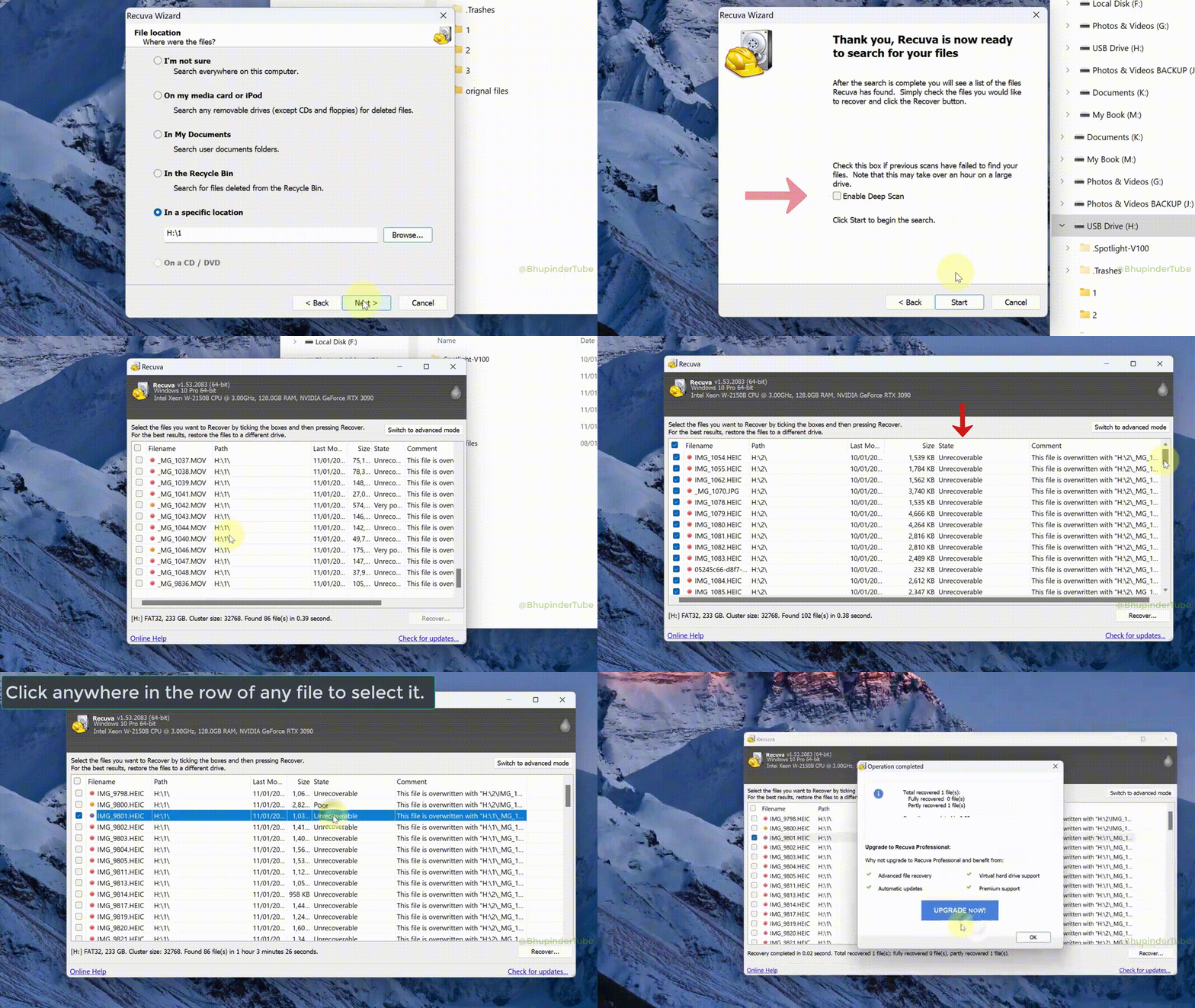
Deep Scan
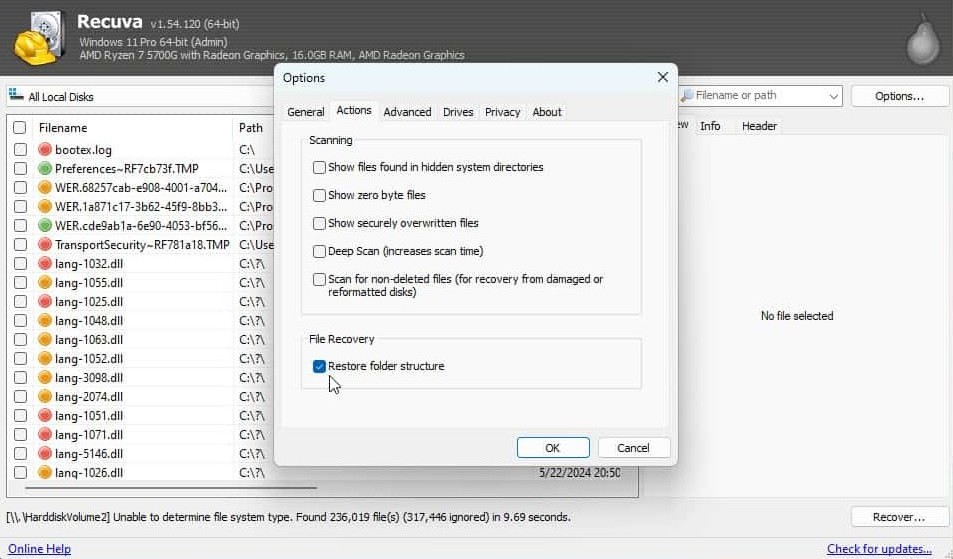
When the file system no longer lists deleted files, Deep Scan searches for known signatures. Budget real time on large disks—multi-terabyte scans are often measured in hours, not minutes.
Capabilities
Pick the mode before you start. The right scan saves hours; the wrong one only raises false hope.
This page walks capabilities (what the tool can attempt) separate from Workflow (how to use it safely). Screens are from real Windows sessions—compare with your own UI version if labels shifted slightly between builds.
When the file system no longer lists deleted files, Deep Scan searches for known signatures. Budget real time on large disks—multi-terabyte scans are often measured in hours, not minutes.
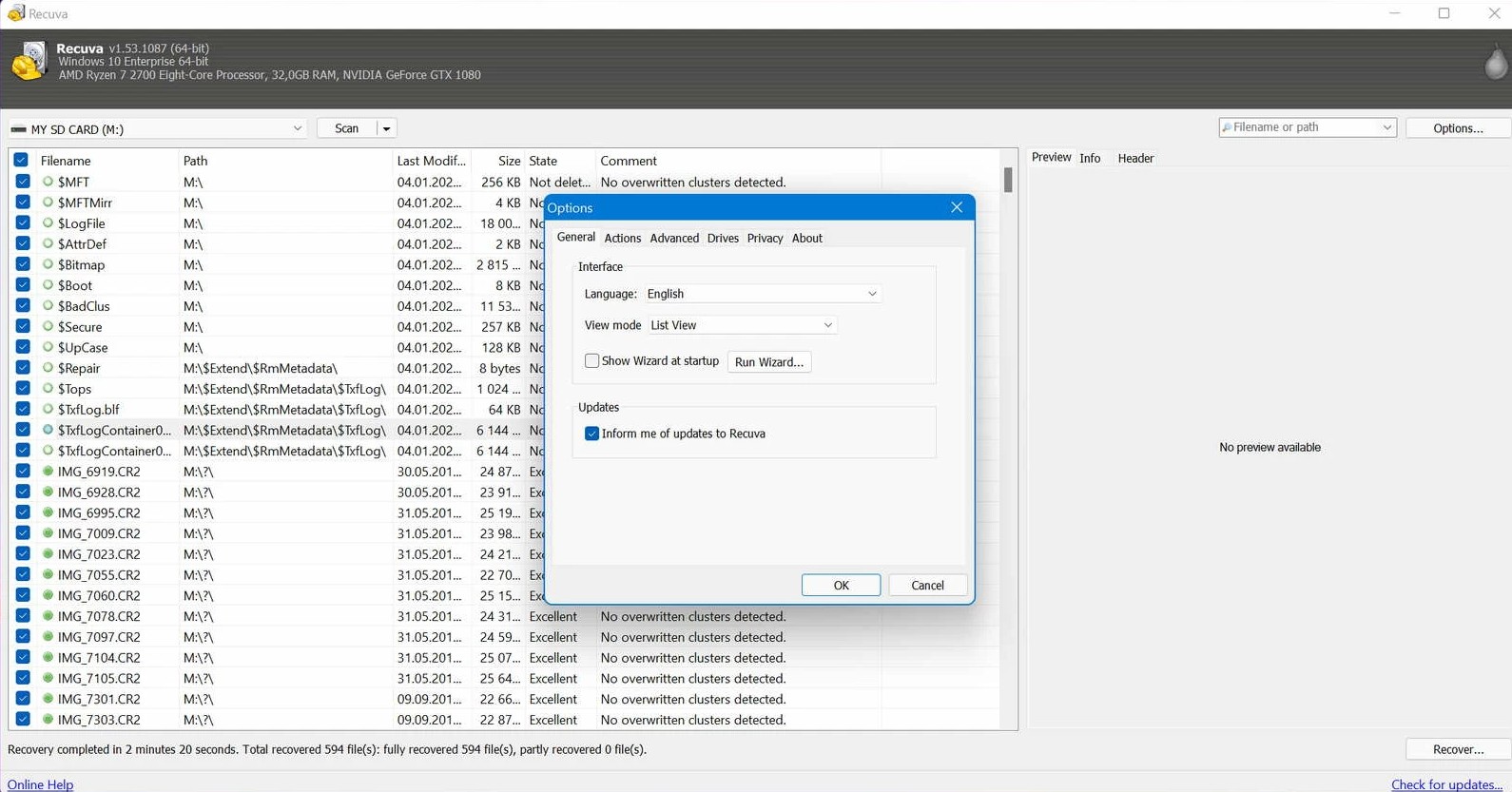
When you need data gone for good, secure deletion overwrites recoverable traces. Never use it on a drive you are still trying to rescue.
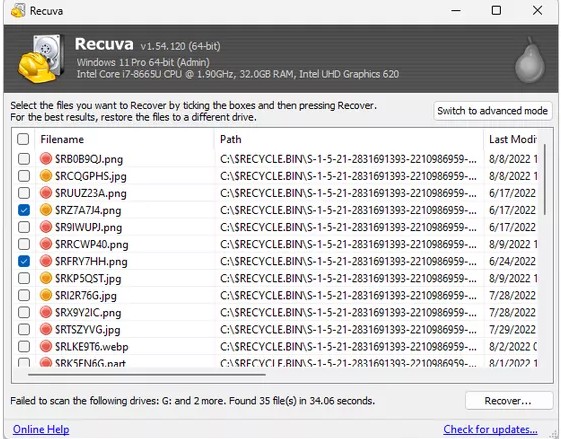
Images, Office files, archives, and more—when clusters are intact. Quality still depends on fragmentation and reuse.
Product tour
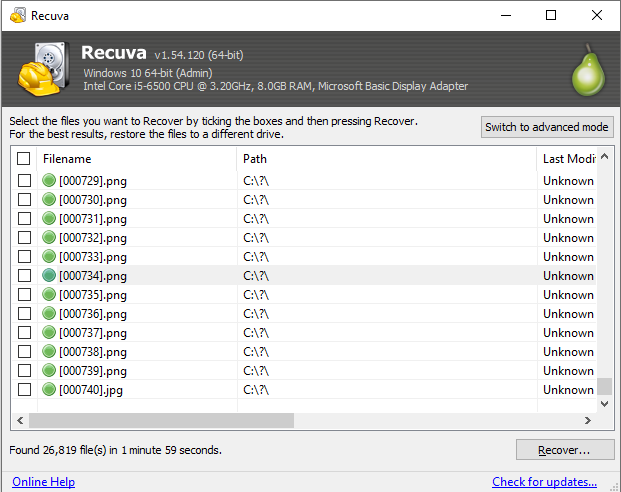
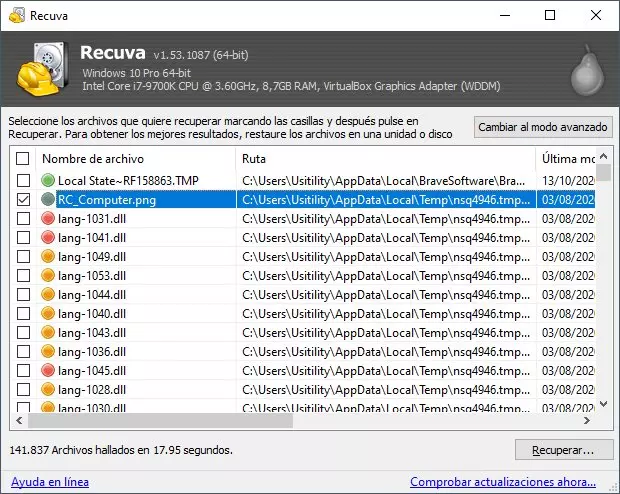
Progress, results list, and folder recovery—what you actually see on Windows.
Scan modes
Choosing wrong wastes time or gives false confidence. Use this as a decision grid.
The wizard narrows file type and location so the first pass is relevant. After results load, filters by path and extension cut noise before you recover in bulk.
Recovery state hints (e.g. excellent vs poor) are guides—not guarantees. Preview images and documents when you can; some types preview better than others.
Restoring original paths helps when you are rebuilding a whole tree—not just a few files. Pair with a dedicated restore drive to avoid overwriting sources.
Recovery quality still depends on fragmentation and whether clusters were reused. Typical categories Recuva targets include photos (JPEG, PNG, RAW), Office documents, PDFs, ZIP/RAR, video, and audio—plus mail stores and browser caches on full-disk scenarios.
Volumes
Recuva works across common Windows layouts. Behavior still changes with how each file system tracks deletes.
Default on internal Windows disks. Rich metadata: normal scans are fast when the MFT still lists deleted entries. Journaling helps consistency—not unlimited undelete.
Common on SD cards and USB sticks. Simpler structures; normal scan can still help after delete, but quick formats wipe directory trees—expect Deep Scan.
Readers, hubs, and cable quality affect stability. If the volume drops during scan, fix the chain before blaming the app—see Support.
Drive letters, “All Files” vs filtered types, and the wizard’s questions all steer the first pass. When in doubt, scan the whole volume once, then narrow—missing scope is a common reason people assume “nothing was found.”
Results list
Capabilities mean little if you drown in rows. These habits mirror what power users do before they click Recover.
Order by path to rebuild a folder mentally, or by size when you are hunting one huge video. Apply type filters before multi-selecting thousands of tiny cache files you never wanted.
After Deep Scan, paths may be partial or synthetic. Cross-check extension, byte size, and preview—two “document(1).pdf” rows can be different deletes from different days.
Stage high-value files first to the destination you trust, verify opens, then widen the selection. One bad destination full disk is easier to fix than a mixed pile of garbage and gold.
Language, updates, and secure overwrite live outside the wizard. Touch them deliberately—especially overwrite—so you never run a destruction pass on a disk you still mean to rescue.
Same UI either way; the difference is where bytes land during extract and run. Read Portable vs installed Recuva before you unzip onto the wrong partition.