
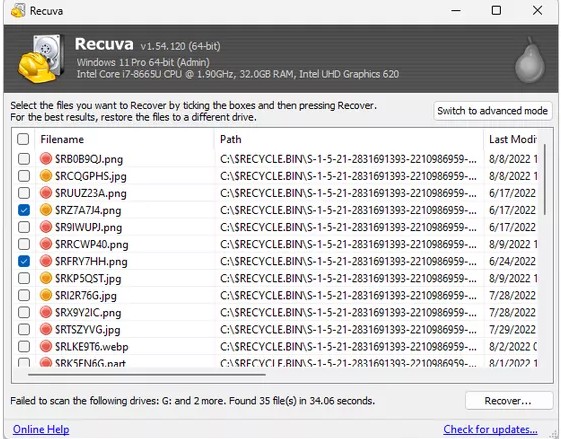
Recuva surfaces a recovery state to summarize how intact a deleted file looks on disk. “Excellent” usually means the cluster chain is still coherent—but heavy fragmentation, partial overwrites, or odd NTFS behaviors can still yield files that fail in their real applications.
Think of recovery state as a weather forecast, not a warranty. A sunny icon does not promise your picnic will stay dry; it says conditions looked favorable at scan time. Another write to the same volume before you recover can downgrade that outlook silently.
Why “excellent” files still break
- The first and last clusters are fine, but a middle run was reused by a small log file—enough to corrupt a database or video container.
- NTFS compression or sparse attributes made size-on-disk smaller than apps expect when they mmap the file.
- The entry points to an alternate data stream or hard link you did not intend to recover.
Use previews for images and quick opens for documents when possible. For video, a short playback test beats trusting size alone. If a file is critical, recover a copy first, then hash or compare against a known good backup if one exists.
Office and ZIP realities
Modern Office files are ZIP containers. Minor bit damage often makes Word report “corrupt” even when most XML inside is readable. Specialized repair tools may extract partial streams; Recuva’s job was to get the bytes off disk intact enough for that second step.
When many files show poor state after a busy week on the same volume, that is a signal to manage expectations: you may get thumbnails or truncated payloads. Pair results with workflow discipline next time—less reuse on the source disk means better odds.
Documenting what you recovered
Keep a simple spreadsheet: original path hint, recovered filename, size, hash if feasible, and whether a human verified open. That log saves hours when stakeholders ask “did we try this file already?” a week later.
For UI specifics on how states appear in the list, visit the product tour. If previews crash only on certain types, see support for codec and permissions patterns.
RAW photos, DAW sessions, and “folder of tiny files”
Proprietary camera RAW bundles sometimes reference sidecar XMP or JPEG previews. Recovering only the .CR3 without the sidecar can look like corruption in Lightroom even when clusters are intact. Scan for related extensions together.
Audio projects with thousands of tiny takes can show “excellent” because each WAV header is fine while the crossfade edits live in a session file you forgot to recover. Always chase the session/project file, not only the media.
Virtual disks and sparse images
VM disk images (.vhdx, .vmdk) can be huge sparse files. Recovery state reflects the host file’s allocation on NTFS, not every guest filesystem block inside—guest files may still be damaged even when the outer image looks healthy.
Communicating risk to non-technical readers
- Replace “excellent” with “structure looked intact at scan time” in emails to legal or finance.
- Attach your verification log so people stop re-requesting the same file.
- Call out when you only recovered a lower-resolution embedded preview—common with some carved JPEGs.
When to escalate instead of re-scanning
If two independent passes disagree on state for the same path hint, suspect unstable hardware or a failing cable. Swapping hardware once is cheaper than arguing about recovery state labels for a week.